This is the first part in a series of tutorials about EndNote. By watching these tutorials you will learn the basic and more advanced features of EndNote really quickly. This first video will show an overview of what EndNote is and what EndNote can do for you. All you have to do is just watch and learn!
I hope you have enjoyed this first part of the tutorial, the next part of the tutorial will be a video to show the new features of EndNote X3!


EndNote: CWYW Keyboard Commands for Word
Here a some helpful keyboard commands to help you speed up your writing when you are using Cite While you Write with Microsoft Word. The table below shows the initial settings, but you can change the key command assignments.
Note that:
• Alt+1 is used for both Return to Word and Go to EndNote. The program determines which application is currently active and switches to the other application.
• Some of these commands are available both from Word and from EndNote.
• While you can change key assignments, keep in mind that most other key combinations are currently already in use in both EndNote and Word.

Keyboard shortcuts for EndNote’s Cite While You Write commands are available in Word. To add or change a keyboard shortcut:
1. Word 2003: From Word’s Tools>EndNote X3 menu, select Cite While You Write Preferences.
Word 2007: On the EndNote tab, in the Tools group, click Preferences.
2. Click the Keyboard tab.
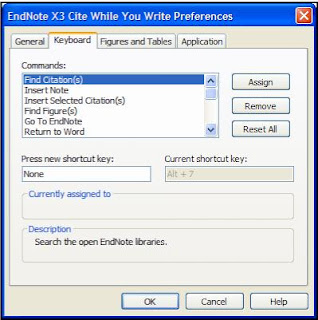
3. From the list of commands, select the command for which you would like to add (or change) a shortcut.
4. Under “Press new shortcut key,” enter the new shortcut key combination on the keyboard
Keyboard shortcuts work in both EndNote and Microsoft Word.
5. Click Assign to assign the new shortcut.
Follow the same steps to remove an assigned shortcut key,
except click Remove instead of Assign.
Click Reset All to remove custom key assignments.
To learn more about the word processors that EndNote X3 is compatible with, click here!
Note that:
• Alt+1 is used for both Return to Word and Go to EndNote. The program determines which application is currently active and switches to the other application.
• Some of these commands are available both from Word and from EndNote.
• While you can change key assignments, keep in mind that most other key combinations are currently already in use in both EndNote and Word.

Keyboard shortcuts for EndNote’s Cite While You Write commands are available in Word. To add or change a keyboard shortcut:
1. Word 2003: From Word’s Tools>EndNote X3 menu, select Cite While You Write Preferences.
Word 2007: On the EndNote tab, in the Tools group, click Preferences.
2. Click the Keyboard tab.

3. From the list of commands, select the command for which you would like to add (or change) a shortcut.
4. Under “Press new shortcut key,” enter the new shortcut key combination on the keyboard
Keyboard shortcuts work in both EndNote and Microsoft Word.
5. Click Assign to assign the new shortcut.
Follow the same steps to remove an assigned shortcut key,
except click Remove instead of Assign.
Click Reset All to remove custom key assignments.
To learn more about the word processors that EndNote X3 is compatible with, click here!
EndNote for Windows: Word Processor Compatibility
A little bit of information on the Windows word processors that EndNote is compatible with.
 EndNote installs Cite While You Write commands in Microsoft
 EndNote installs Cite While You Write commands in the
Word Processor Compatibility:
As of June 2009, EndNote for Windows is compatible with:
- Microsoft Office Word 2003 or 2007 for Windows
- Open Document Format (ODT) documents created with OpenOffice.org Writer
- RTF files created with most word processors, including:
Microsoft Word, WordPerfect, OpenOffice.org Writer,
StarOffice, and WordPad
Microsoft Word:
EndNote installs Cite While You Write commands in MicrosoftWord. Word 2003 displays an EndNote submenu of commands
on Word’s Tools menu. Word 2007 displays Cite While You Write
commands on an EndNote tab. Cite While You Write allows
EndNote to format citations and create a bibliography for the
document that is open in Word. You can format, unformat, and
reformat a document—without exiting your word processor.
In order for Cite While You Write to install properly, Microsoft
Word 2003 or 2007 must be correctly installed on your computer
prior to installing EndNote. However, make sure that the Word
application is closed before attempting to install Cite While You
Write.
If a supported version of Microsoft Word is installed on your
computer, the appropriate Cite While You Write files are
installed automatically for the current user when you run the
EndNote installation. This feature can be used with a shared
copy of Word or on a network.
OpenOffice.org Writer:
EndNote installs Cite While You Write commands in theOpenOffice.org version 3 Writer. CWYW commands appear on
an EndNote menu. Cite While You Write allows EndNote to
format citations and create a bibliography for the document that
is open in OpenOffice.org Writer. You can format, unformat, and
reformat a document—without exiting your word processor.
In order for Cite While You Write to install properly, the
OpenOffice.org 3.x suite must be correctly installed on your
computer prior to installing EndNote.
You must close all OpenOffice.org applications before installing
Cite While You Write, including the OpenOffice.org
Quickstarter.
RTF and ODT Documents:
For word processors other than Word 2003, Word 2007, or
OpenOffice.org 3.x, first write your paper and insert in-text
citations. If the file format is anything other than an
OpenOffice.org ODT document, save as an RTF file. Then, use
EndNote’s Format Paper feature to format the citations and
bibliography from your ODT or RTF file.
Special EndNote tips & tricks!
Here are a couple of really good tips, tricks and workarounds from LibraryFit. These will come in handy when working with EndNote and provide solutions for problems you may encounter along the way.
Direct export using the Macintosh
This will work with Firefox as the browser, but not with Safari. Firefox will give you the option to open the file, and will ask which program you wish to use. Select EndNote as the program.
Word processor compatibility
In response to user demand, backwards compatibility has been improved, and EndNote X3 is compatible with Word 2000 and Open Office.
Direct export from Google Scholar
This will work better if you go into the Scholar Preferences, go to the Bibliography Manager settings, and select RefMan instead of EndNote. When you do your search, you will now see links "Import into RefMan". Click on these links and the references will import directly to EndNote.
Find Full Text
If you are not working in the biomedical area, find full text will work more quickly in EndNote X3 if you go to the Preferences>Find Full Text, and uncheck the "Pubmed Link Out" option. Certain databases have licensing agreements which prohibit use of the find full text feature. These include Ebsco, JSTOR, Swets.
EndNote Web
Version 2.8 is in beta and should be released soon. The ability to insert references into a Word document from a folder which another user has shared with you should be available next year [but they have been saying this for a while!] This problem with shared folders is significant for students who want to use EndNote for group projects. It is suggested as a workaround that one of the students should get a new email account (from Gmail, Yahoo, or wherever) and then set up a new EndNote Web account. The username and password can then be given to all the group.
Locating a Corrupt Citation in a Word Document
The normal procedure when dealing with possible corruption is to unformat the citations. A corrupt citation will not unformat. But how do you pick up an unformatted citation in a lengthy document? Go to the Word preferences for "Field shading." Change the setting from "When selected" to "Always." Now you can scan through the document and look for greyed areas of text. This way you can more easily pick up the corrupt citations which failed to unformat.
Dealing with a Corrupt Word Document
If the user is able to open a new Word document and insert EndNote citations correctly, then the corruption is probably limited to the document that they are working on. Click on the "backwards P" symbol on the Word toolbar to display all the hidden formatting symbols. Copy the document, except for the final paragraph symbol (the "backwards P" again). Paste it into a new document. Can you now insert citations correctly? In corrupt documents, the corruption is often contained in that final paragraph symbol. If the document is divided by section breaks, there can also be corruption in a particular section. The same procedure applies: copy the document section by section, omitting the final paragraph mark in each section.
Word’s Normal Template is Corrupt
If the user opens a new Word document, but is unable to insert EndNote citations correctly, then the default Word template (the "normal" template) may be corrupt. To fix this, first close Word. Go to Windows Explorer and make sure that you have set the Folder Options so that you can view hidden files and folders. Then locate the normal template (in the MicrosoftTemplates folder under the Application Data). It will be called "normal.dot" or "normal.dotm". Remove this file from that folder and save it somewhere else. It contains all the preferences for Word, so don’t delete it at this point: just move it elsewhere. Also, look for any temporary files in that folder with names beginning ~$. Delete these. Now restart Word. Word will recreate the normal template (without any of the preferences). Does this fix the EndNote problem? If not, you should close Word, go back to the templates folder, delete the new normal template and retrieve the old normal template. This will restore your Word preferences. Of course, it won’t fix the EndNote problem.
Doing a Clean Reinstall of EndNote
Uninstalling EndNote from Control Panel will not remove all EndNote files from your computer. Sometimes you need to delete all the files, especially if you want to delete the preferences.
EndNote files may still be present in these locations:
* an EndNote folder in the Documents area
* an EndNote folder in your Application Data
* in the Program Files/Common Files/ResearchSoft folder
* in the Program Files/Common Files/Thomson ResearchSoft folder
* in the Program Files/EndNote… folder
You also have to run regedit to open the Registry Editor and delete the EndNote folder under: HKEY_CURRENT_USERSoftwareISI ResearchSoft
Now restart Windows.
Then reinstall EndNote.
If you have any questions about the tips above or other EndNote issues, feel free to contact me.
Want to know more about EndNote X3?
Or any updates of the EndNote program?
Direct export using the Macintosh
This will work with Firefox as the browser, but not with Safari. Firefox will give you the option to open the file, and will ask which program you wish to use. Select EndNote as the program.
Word processor compatibility
In response to user demand, backwards compatibility has been improved, and EndNote X3 is compatible with Word 2000 and Open Office.
Direct export from Google Scholar
This will work better if you go into the Scholar Preferences, go to the Bibliography Manager settings, and select RefMan instead of EndNote. When you do your search, you will now see links "Import into RefMan". Click on these links and the references will import directly to EndNote.
Find Full Text
If you are not working in the biomedical area, find full text will work more quickly in EndNote X3 if you go to the Preferences>Find Full Text, and uncheck the "Pubmed Link Out" option. Certain databases have licensing agreements which prohibit use of the find full text feature. These include Ebsco, JSTOR, Swets.
EndNote Web
Version 2.8 is in beta and should be released soon. The ability to insert references into a Word document from a folder which another user has shared with you should be available next year [but they have been saying this for a while!] This problem with shared folders is significant for students who want to use EndNote for group projects. It is suggested as a workaround that one of the students should get a new email account (from Gmail, Yahoo, or wherever) and then set up a new EndNote Web account. The username and password can then be given to all the group.
Locating a Corrupt Citation in a Word Document
The normal procedure when dealing with possible corruption is to unformat the citations. A corrupt citation will not unformat. But how do you pick up an unformatted citation in a lengthy document? Go to the Word preferences for "Field shading." Change the setting from "When selected" to "Always." Now you can scan through the document and look for greyed areas of text. This way you can more easily pick up the corrupt citations which failed to unformat.
Dealing with a Corrupt Word Document
If the user is able to open a new Word document and insert EndNote citations correctly, then the corruption is probably limited to the document that they are working on. Click on the "backwards P" symbol on the Word toolbar to display all the hidden formatting symbols. Copy the document, except for the final paragraph symbol (the "backwards P" again). Paste it into a new document. Can you now insert citations correctly? In corrupt documents, the corruption is often contained in that final paragraph symbol. If the document is divided by section breaks, there can also be corruption in a particular section. The same procedure applies: copy the document section by section, omitting the final paragraph mark in each section.
Word’s Normal Template is Corrupt
If the user opens a new Word document, but is unable to insert EndNote citations correctly, then the default Word template (the "normal" template) may be corrupt. To fix this, first close Word. Go to Windows Explorer and make sure that you have set the Folder Options so that you can view hidden files and folders. Then locate the normal template (in the MicrosoftTemplates folder under the Application Data). It will be called "normal.dot" or "normal.dotm". Remove this file from that folder and save it somewhere else. It contains all the preferences for Word, so don’t delete it at this point: just move it elsewhere. Also, look for any temporary files in that folder with names beginning ~$. Delete these. Now restart Word. Word will recreate the normal template (without any of the preferences). Does this fix the EndNote problem? If not, you should close Word, go back to the templates folder, delete the new normal template and retrieve the old normal template. This will restore your Word preferences. Of course, it won’t fix the EndNote problem.
Doing a Clean Reinstall of EndNote
Uninstalling EndNote from Control Panel will not remove all EndNote files from your computer. Sometimes you need to delete all the files, especially if you want to delete the preferences.
EndNote files may still be present in these locations:
* an EndNote folder in the Documents area
* an EndNote folder in your Application Data
* in the Program Files/Common Files/ResearchSoft folder
* in the Program Files/Common Files/Thomson ResearchSoft folder
* in the Program Files/EndNote… folder
You also have to run regedit to open the Registry Editor and delete the EndNote folder under: HKEY_CURRENT_USERSoftwareISI ResearchSoft
Now restart Windows.
Then reinstall EndNote.
If you have any questions about the tips above or other EndNote issues, feel free to contact me.
Want to know more about EndNote X3?
Or any updates of the EndNote program?
Getting EndNote files from the new PubMed!
Those of you that use PubMed in connection with EndNote may have noticed that the PubMed website has changed a little bit recently. To make sure that you are still comfortable with using EndNote and PubMed, I'll give you step by step instructions on how to get the references from PubMed into your EndNote library:


1. Start by going to the PubMed website, http://www.pubmed.gov/
2. Perform your search for references (either normal or advanced search)
2. Perform your search for references (either normal or advanced search)
3. Now select the references that you would like to import into EndNote by clicking the check boxes.


4. Click the "Send to:" link at the top right corner of the window.
5. From the "Send to" menu, choose file.

6. From the drop-down list 'Format' choose the option "Medline".
7. Click "Create File" and save the file to a location of your choosing.
(you may have to turn off your browsers 'pop-up blocking' to see the save file message)
You have now exported a file from the PubMed database to a location on your computer. Now to correctly import this file into EndNote, take the following steps:
8. Open the EndNote program.
9. Go to the File menu and choose Import.

10. Click Choose File... to find the pubmed_results.txt file on your computer.
11. From the Import Option list choose PubMed (NLM). If you do not see PubMed in the list, choose Other Filters and browse to PubMed (NLM).
12. Click import to import the reference(s) into your EndNote library.
Now you can continue your research in the way you were used to, by getting references from PubMed into EndNote. You can of course still connect to the PubMed database and search for references from within EndNote and EndNote Web. That process has not changed and it is still a quick and easy way of getting references into your EndNote library.
If you have any questions, feel free to contact me or leave a message on this Blog!
To check out more EndNote Updates, click here.
And to learn more about EndNote X3, read this article.
EndNote updates for this month!
Free! New and updated connection files and import filters, and output styles are provided for your convenience. Review the lists below for new and updated files created over the last 30 days based on the requests submitted to our development team.
You can download files individually or as a complete set. You may want to rename any files you have customized as the new versions will overwrite existing files. Once the file(s) is downloaded to your desktop, copy the file(s) to the appropriate folder in your EndNote program directory (usually located in Windows—C:\Program Files\EndNote or Mac OS X—Harddrive:Applications:EndNote).
New and Updated Output Styles
Select and download individual styles.
See the new APA 6th Output Style.
Download a complete set of EndNote styles for version 8 and up or versions 4-7.
Suggest a new style.
Read more about EndNote updates in this article.
You can download files individually or as a complete set. You may want to rename any files you have customized as the new versions will overwrite existing files. Once the file(s) is downloaded to your desktop, copy the file(s) to the appropriate folder in your EndNote program directory (usually located in Windows—C:\Program Files\EndNote or Mac OS X—Harddrive:Applications:EndNote).
New and Updated Output Styles
Select and download individual styles.
See the new APA 6th Output Style.
Download a complete set of EndNote styles for version 8 and up or versions 4-7.
Suggest a new style.
Read more about EndNote updates in this article.
EndNote with Snow Leopard 10.6 Compatibility coming up!
The makers of EndNote are also working to make EndNote compatible with the latest versions of Macintosh Operating Systems. Here's the full story:
With the release of Mac OS X 10.6 Snow Leopard, we are currently working on completing testing with the final version of Mac OS X 10.6 Snow Leopard.
We will continue to update this page with any issues found. Note that all Leopard compatibility notes (below) also apply to 10.6.
Word 2008 and Printing
We have identified an issue where printing from Word 2008 and then quitting word with the EndNote tools loaded causes Word to crash. As the crash happens as Word is closing after all data has been saved, we do not anticipate any data loss due to this issue.
To avoid this crash, you can do the following after printing before quitting Word:
Go to the "Tools" menu, choose "Templates and Add-ins..."
Uncheck "EndNote CWYW Commands.dot" and "EndNote CWYW Word 2008.bundle."
Quit Word. When you restart, the EndNote tools should load again.
Pages, multi-byte, and Snow Leopard issue:
Apple has released an upgrade to Pages '09, included in the iWork 9.0.3 update that addresses compatibility issues users of 10.6 and EndNote and Pages had experienced.
From the 9.0.3 release notes:
"Fixes an issue with saving documents with EndNote citations containing multi-byte characters when using Mac OS 10.6"
Note: This fix may not correct all documents affected by this issue using Pages prior to the patch. You may need to restore from a backup copy of those documents if that is the case.
This update should be installed from the Apple menu, Software Updates before working with EndNote, Pages and 10.6. It is also available here.
Leopard 10.5 Compatibility News
EndNote X2 and later
EndNote X2 was designed after the release of Leopard, and it was designed to work with this operating system. There are no known compatibility issues affecting EndNote X2 and Mac OS X 10.5 at this point.
EndNote X1
There are no current compatibility issues with EndNote X1 and Leopard with the 10.5.2 and later versions of Leopard.
EndNote X
There are no known compatibility issues affecting EndNote X at this point.
EndNote 9
Due to major compatibility issues, it is not recommend to run EndNote 9 or earlier on OS X 10.5. It is not possible to use the "Connect" option reliably.
EndNote 9 will not import text files formatted in many standard direct export formats.
There are no workarounds for these issues.
EndNote 9 and earlier versions will not be updated for Leopard compatibility.
EndNote 8 and earlier
EndNote versions prior to version 9 were no longer supported at the time of the OS X 10.5 release. Our current list of supported versions is here.
We will not test or support running these older versions with OS X 10.5.
Note that the issues reported above for EndNote 9 may affect older versions of EndNote as well.
Previous compatibility reports can be found here:
- Tiger 10.4
- Panther 10.3
- Intel processor transition
With the release of Mac OS X 10.6 Snow Leopard, we are currently working on completing testing with the final version of Mac OS X 10.6 Snow Leopard.
We will continue to update this page with any issues found. Note that all Leopard compatibility notes (below) also apply to 10.6.

Word 2008 and Printing
We have identified an issue where printing from Word 2008 and then quitting word with the EndNote tools loaded causes Word to crash. As the crash happens as Word is closing after all data has been saved, we do not anticipate any data loss due to this issue.
To avoid this crash, you can do the following after printing before quitting Word:
Go to the "Tools" menu, choose "Templates and Add-ins..."
Uncheck "EndNote CWYW Commands.dot" and "EndNote CWYW Word 2008.bundle."
Quit Word. When you restart, the EndNote tools should load again.
Pages, multi-byte, and Snow Leopard issue:
Apple has released an upgrade to Pages '09, included in the iWork 9.0.3 update that addresses compatibility issues users of 10.6 and EndNote and Pages had experienced.
From the 9.0.3 release notes:
"Fixes an issue with saving documents with EndNote citations containing multi-byte characters when using Mac OS 10.6"
Note: This fix may not correct all documents affected by this issue using Pages prior to the patch. You may need to restore from a backup copy of those documents if that is the case.
This update should be installed from the Apple menu, Software Updates before working with EndNote, Pages and 10.6. It is also available here.
Leopard 10.5 Compatibility News
EndNote X2 and later
EndNote X2 was designed after the release of Leopard, and it was designed to work with this operating system. There are no known compatibility issues affecting EndNote X2 and Mac OS X 10.5 at this point.
EndNote X1
There are no current compatibility issues with EndNote X1 and Leopard with the 10.5.2 and later versions of Leopard.
EndNote X
There are no known compatibility issues affecting EndNote X at this point.
EndNote 9
Due to major compatibility issues, it is not recommend to run EndNote 9 or earlier on OS X 10.5. It is not possible to use the "Connect" option reliably.
EndNote 9 will not import text files formatted in many standard direct export formats.
There are no workarounds for these issues.
EndNote 9 and earlier versions will not be updated for Leopard compatibility.
EndNote 8 and earlier
EndNote versions prior to version 9 were no longer supported at the time of the OS X 10.5 release. Our current list of supported versions is here.
We will not test or support running these older versions with OS X 10.5.
Note that the issues reported above for EndNote 9 may affect older versions of EndNote as well.
Previous compatibility reports can be found here:
- Tiger 10.4
- Panther 10.3
- Intel processor transition
EndNote is also being optimized for Microsofts latest Operating System, read more about Optimizing EndNote for Windows 7.
Subscribe to:
Posts (Atom)